Local-First Operation
Chorum can run entirely on your machine—no cloud, no API calls, no data leaving your computer. Use local models like Ollama for complete privacy.
Why This Matters
Sometimes you need absolute privacy:
- Working with classified or sensitive projects
- Air-gapped environments
- Avoiding API costs entirely
- Maximum control over your data
Local-first mode gives you all of Chorum’s features without any external dependencies.
What “Local-First” Means
| Component | Cloud Mode | Local-First Mode |
|---|---|---|
| LLM inference | OpenAI, Anthropic, etc. | Ollama, LM Studio |
| Memory storage | Your machine | Your machine |
| Embeddings | Local by default | Local by default |
| Authentication | Supabase Auth | Local/optional |
| Data sent externally | Prompts to LLM providers | Nothing |
Setting Up Ollama
1. Install Ollama
Download and install from ollama.ai:
# macOS
brew install ollama

# Linux
curl -fsSL https://ollama.ai/install.sh | sh

# Windows
# Download installer from ollama.ai
2. Pull a Model
Download a model to use:
# Good all-around model
ollama pull llama3.2

# Smaller, faster model
ollama pull mistral

# Larger, more capable
ollama pull mixtral
3. Start Ollama
ollama serveOllama runs on http://localhost:11434 by default.
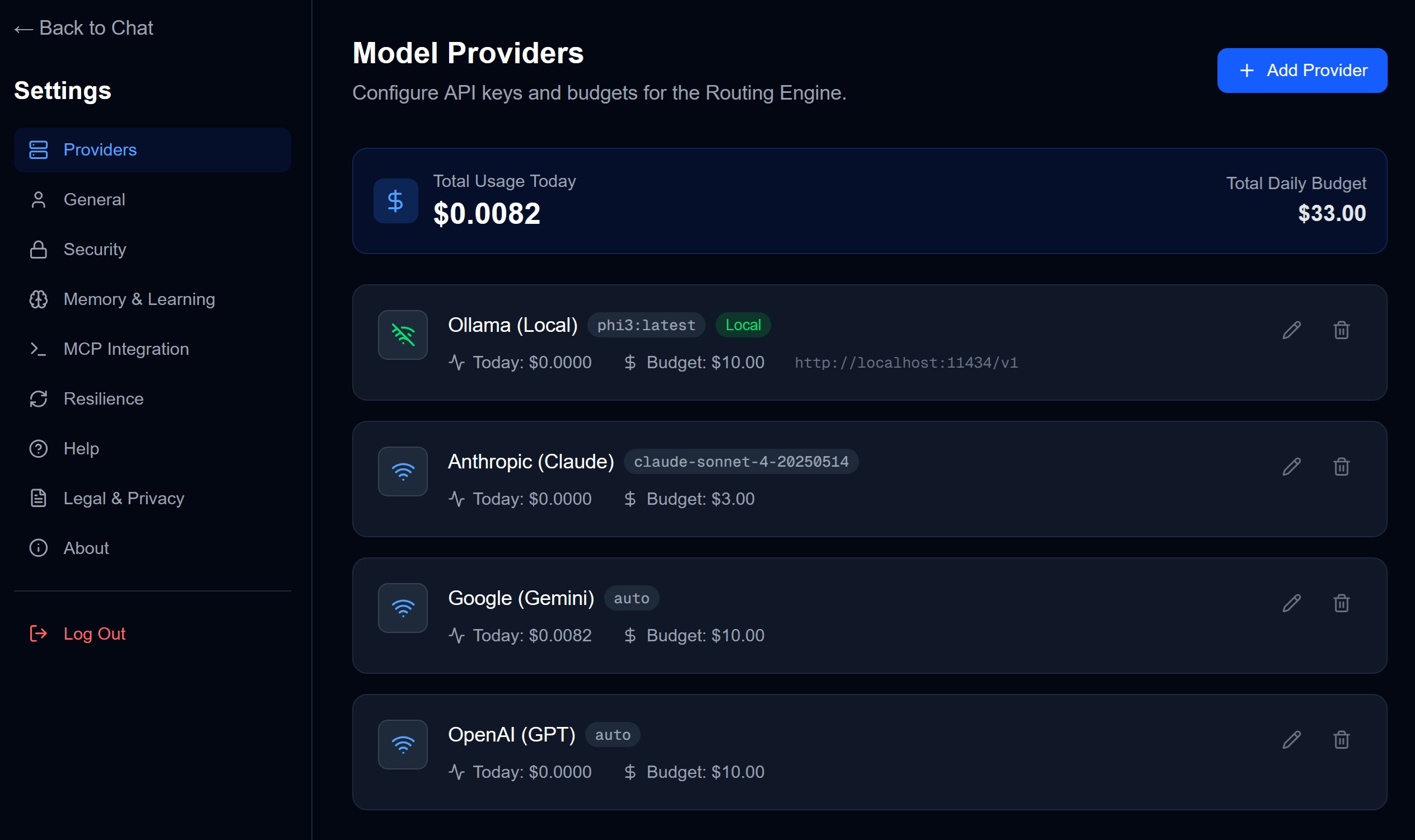
4. Configure in Chorum
- Go to Settings → Providers
- Find Ollama in the provider list
- Configure:
- Base URL:
http://localhost:11434(default) - Model: Select from detected models
- Base URL:
- Verify connection shows “Connected - X model(s) found”
Complete Local Setup
To run Chorum with zero external connections:
Step 1: Disable Cloud Providers
- Go to Settings → Providers
- Remove or disable API keys for:
- OpenAI
- Anthropic
- Perplexity
- Any other cloud providers
Step 2: Configure Local Provider
- Set up Ollama (see above) or LM Studio
- Verify connection in Chorum
- Set as default provider
Step 3: Verify Local-Only
In Settings → Providers, you should see:
- No cloud providers configured
- Ollama (or LM Studio) connected with models
Now all LLM calls go to your local model.
Local Model Options
Ollama
Best for: General use, easy setup, good model variety
| Model | Size | Best For |
|---|---|---|
llama3.2 | 4.7GB | General coding, chat |
codellama | 4.7GB | Code generation |
mistral | 4.1GB | Fast responses |
mixtral | 26GB | Complex reasoning |
phi3 | 2.3GB | Lightweight use |
LM Studio
Best for: GUI-based management, experimentation
- Download from lmstudio.ai
- Browse and download models from the UI
- Start the local server
- Configure in Chorum’s provider settings
Other Local Options
- GPT4All — Cross-platform, easy setup
- llamafile — Single-file executable models
- Text Generation WebUI — Advanced options
Performance Considerations
Hardware Requirements
| Model Size | RAM Needed | GPU VRAM |
|---|---|---|
| 7B params | 8GB+ | 6GB+ |
| 13B params | 16GB+ | 10GB+ |
| 34B+ params | 32GB+ | 24GB+ |
Without GPU: Models run on CPU (slower but works) With GPU: Much faster inference, especially for larger models
Response Speed
Local models are generally slower than cloud APIs:
| Model | Typical Speed |
|---|---|
| Small (7B) on GPU | 30-50 tokens/sec |
| Small (7B) on CPU | 5-15 tokens/sec |
| Large (34B) on GPU | 15-25 tokens/sec |
For most use cases, this is acceptable. For complex tasks, patience is required.
Budget and Local Models
When using local models:
- No per-token cost — Run unlimited queries
- Budget settings ignored — They don’t apply to local
- Daily budget UI hidden — Not relevant
The cost is your hardware and electricity, not API fees.
Routing with Local Models
Chorum’s intelligent routing still works:
| Query Complexity | Local Behavior |
|---|---|
| Simple questions | Smaller model if available |
| Complex coding | Larger model if available |
| Reasoning tasks | Best available model |
If you only have one local model, all queries go to it.
Mixing Local and Cloud
You can use local models for some things and cloud for others:
Example: Local for Privacy, Cloud for Power
- Sensitive projects: Route to Ollama
- General projects: Route to cloud providers
Configure in Settings → Resilience:
- Set Ollama as primary for specific projects
- Cloud providers as fallback
Example: Local as Fallback
- Primary: Cloud providers (OpenAI, Anthropic)
- Fallback: Ollama when cloud is unavailable
This gives you speed normally, with local backup.
Limitations of Local Models
Be aware of trade-offs:
| Aspect | Cloud Models | Local Models |
|---|---|---|
| Response quality | Generally better | Varies by model |
| Context window | 100K+ tokens | Usually 4-32K |
| Speed | Fast | Depends on hardware |
| Cost | Per-token | Free (after hardware) |
| Privacy | Data sent to provider | Stays local |
For many tasks, local models are excellent. For complex reasoning or long documents, cloud models may perform better.
Troubleshooting
”Connection refused” to Ollama
- Verify Ollama is running:
ollama list - Check the server:
curl http://localhost:11434 - Verify the port matches your Chorum config
”Model not found”
- Check available models:
ollama list - Pull the model:
ollama pull <model-name> - Refresh the model list in Chorum settings
Slow responses
- Use a smaller model
- Reduce max tokens in response
- Consider GPU acceleration
- Check system resources (RAM, CPU)
Memory issues
Large models need significant RAM:
- Close other applications
- Use a smaller model
- Enable swap space (slower but works)
FAQ
Can I use local models with MCP?
Yes. When external agents query via MCP, they can trigger local model inference. The agent never knows if you’re using local or cloud.
Do embeddings use local models?
By default, Chorum uses local embeddings (no cloud call needed). This is independent of your LLM choice.
Can I run without internet at all?
Yes. Once models are downloaded and Chorum is set up, no internet is required. You can even run in airplane mode.
How do I update local models?
ollama pull <model-name> # Re-pulls latest versionRelated Documentation
- Sovereignty Overview — Why local-first matters
- Encryption — How data is protected
- Settings: Resilience — Configuring fallbacks