IDE Integration
Specific configuration instructions for each supported IDE.
Why This Matters
Each IDE stores MCP configuration in a different location with slightly different formats. This guide shows exactly where to put your ChorumAI configuration.
Claude Code (Claude Desktop)
Claude Desktop is Anthropic’s official desktop app with built-in MCP support.
Configuration File Location
| OS | Path |
|---|---|
| macOS | ~/.config/claude-desktop/claude_desktop_config.json |
| Windows | %APPDATA%\Claude\claude_desktop_config.json |
| Linux | ~/.config/claude-desktop/claude_desktop_config.json |
Configuration
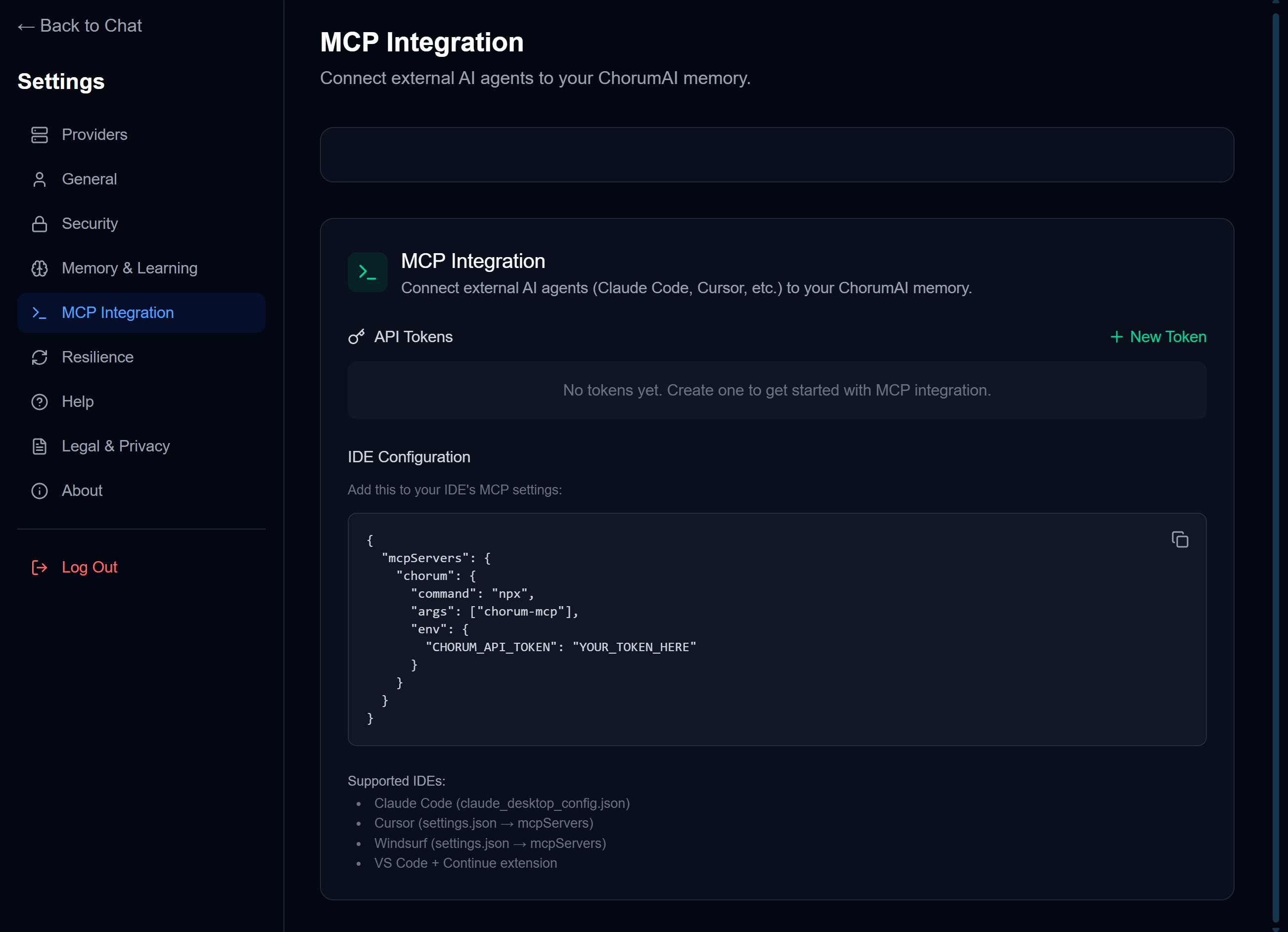
Create or edit the config file:
{
  "mcpServers": {
    "chorum": {
      "command": "npx",
      "args": ["chorum-mcp"],
      "env": {
        "CHORUM_API_TOKEN": "chorum_xxxxxxxxxxxxx"
      }
    }
  }
}
Verification
- Restart Claude Desktop
- Start a new conversation
- Type: “List my ChorumAI projects”
- Claude should use the
chorum_list_projectstool
Cursor
Cursor is a VS Code fork with AI-first features and MCP support.
Configuration Location
Settings → Features → MCP Servers
Or edit directly:
- macOS/Linux:
~/.cursor/mcp.json - Windows:
%USERPROFILE%\.cursor\mcp.json
Configuration
{
  "mcpServers": {
    "chorum": {
      "command": "npx",
      "args": ["chorum-mcp"],
      "env": {
        "CHORUM_API_TOKEN": "chorum_xxxxxxxxxxxxx"
      }
    }
  }
}
Verification
- Restart Cursor
- Open the MCP panel (usually in the sidebar)
- Verify “chorum” appears as connected
- Test with: “What invariants exist for this project?”
Windsurf
Windsurf is Codeium’s AI-powered IDE with MCP support.
Configuration Location
Check Windsurf’s documentation for the current config path, typically:
- macOS/Linux:
~/.windsurf/mcp.json - Windows:
%USERPROFILE%\.windsurf\mcp.json
Configuration
{
  "mcpServers": {
    "chorum": {
      "command": "npx",
      "args": ["chorum-mcp"],
      "env": {
        "CHORUM_API_TOKEN": "chorum_xxxxxxxxxxxxx"
      }
    }
  }
}
Verification
- Restart Windsurf
- Check the MCP status indicator
- Test with a query about your project patterns
VS Code + Continue
Continue is an open-source AI coding assistant that runs as a VS Code extension.
Configuration Location
Continue stores its config in:
- macOS/Linux:
~/.continue/config.json - Windows:
%USERPROFILE%\.continue\config.json
Configuration
Add the MCP server to your Continue config:
{
  "mcpServers": {
    "chorum": {
      "command": "npx",
      "args": ["chorum-mcp"],
      "env": {
        "CHORUM_API_TOKEN": "chorum_xxxxxxxxxxxxx"
      }
    }
  }
}
Verification
- Reload VS Code (or restart)
- Open the Continue sidebar
- Verify the MCP server is connected
- Test with: “Query my project memory for authentication patterns”
Common Configuration Options
Using a Specific Project
To default to a specific project, add it to your config file:
{
  "mcpServers": {
    "chorum": {
      "command": "npx",
      "args": ["chorum-mcp"],
      "env": {
        "CHORUM_API_TOKEN": "chorum_xxxxxxxxxxxxx",
        "CHORUM_DEFAULT_PROJECT": "proj_abc123"
      }
    }
  }
}
Debug Mode
To see detailed MCP communication logs:
{
  "mcpServers": {
    "chorum": {
      "command": "npx",
      "args": ["chorum-mcp", "--debug"],
      "env": {
        "CHORUM_API_TOKEN": "chorum_xxxxxxxxxxxxx"
      }
    }
  }
}
Troubleshooting by IDE
Claude Code
| Issue | Solution |
|---|---|
| Config not loading | Ensure valid JSON (no trailing commas) |
| “Server not found” | Verify Node.js is installed and in PATH |
| Tools not appearing | Restart Claude Desktop completely (quit, not just close) |
Cursor
| Issue | Solution |
|---|---|
| MCP panel not visible | Enable in Settings → Features |
| Connection failing | Check Cursor’s Output panel for errors |
| Slow startup | First npx call downloads the package; subsequent calls are faster |
Windsurf
| Issue | Solution |
|---|---|
| Config location unknown | Check Windsurf documentation or support |
| Permission errors | Ensure config file is readable |
VS Code + Continue
| Issue | Solution |
|---|---|
| Continue not detecting MCP | Update Continue to latest version |
| Multiple MCP servers | Ensure unique names in config |
Testing Your Connection
After configuration, test with these prompts:
- List projects: “What ChorumAI projects do I have?”
- Query memory: “What patterns does my project use for error handling?”
- Get invariants: “What rules must I never break in this project?”
- Get context: “What’s the tech stack for my current project?”
If the agent successfully uses ChorumAI tools, you’re connected!
Security Reminder
- Don’t commit your token — Add your IDE’s config file to
.gitignore - Use separate tokens — One per IDE makes revocation easier
- Review pending learnings — AI proposals require your approval
Related Documentation
- MCP Overview — What MCP is and why it matters
- Setup Guide — Token generation and initial setup
- Tools Reference — Detailed tool documentation