MCP Setup Guide
Connect your IDE to ChorumAI in three steps: generate a token, configure your IDE, and verify the connection.
Why This Matters
Once connected, your IDE’s AI agent can access your project’s patterns, decisions, and invariants—giving it the context it needs without you having to repeat yourself.
Prerequisites
- A ChorumAI account with at least one project
- One of these supported IDEs:
- Claude Code (Claude Desktop)
- Cursor
- Windsurf
- VS Code with Continue extension
Step 1: Generate an API Token
Via Web UI
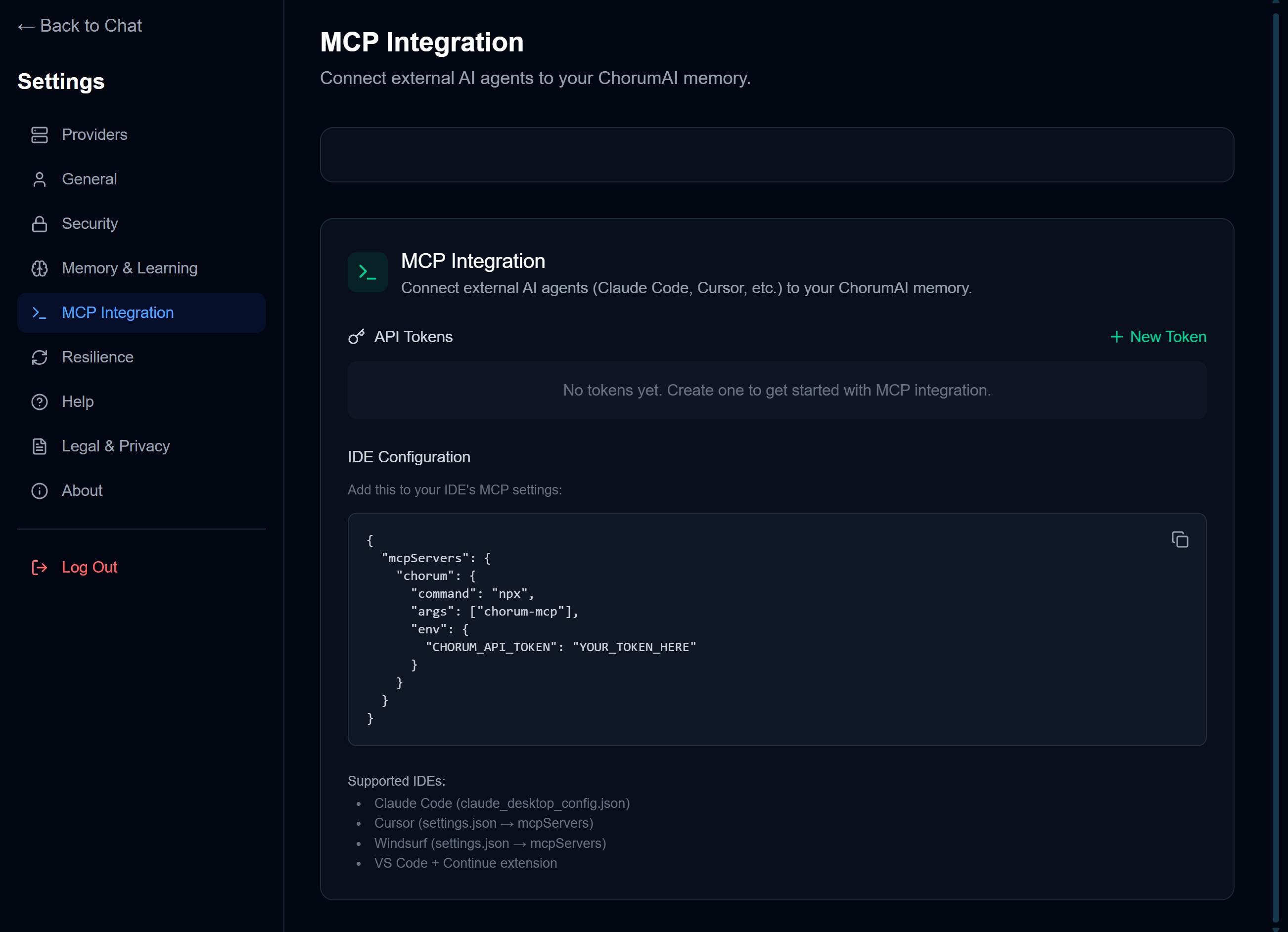
- Open ChorumAI in your browser
- Navigate to Settings → MCP Integration
- Click New Token
- Copy the token immediately—it won’t be shown again
Via CLI
If you have the H4X0R CLI installed:
chorum login      # If not already logged in
chorum mcp config
This displays the MCP configuration with your token.
Step 2: Configure Your IDE
Add the following to your IDE’s MCP configuration. Replace YOUR_TOKEN_HERE with the token you copied:
{
  "mcpServers": {
    "chorum": {
      "command": "npx",
      "args": ["chorum-mcp"],
      "env": {
        "CHORUM_API_TOKEN": "chorum_xxxxxxxxxxxxx"
      }
    }
  }
}
See IDE Integration for the exact config file location for each IDE.
Step 3: Verify Connection
After restarting your IDE, verify the connection:
Option A: Via CLI
chorum mcp statusYou should see:
✓ MCP Server: Connected
✓ Projects: 3 accessible
✓ Last query: 2 minutes ago
Option B: Via IDE
Check your IDE’s MCP server status panel. You should see “chorum” listed as connected with 6 available tools.
Available Tools
Once connected, your AI agent has access to:
| Tool | Description |
|---|---|
chorum_list_projects | List all your ChorumAI projects |
chorum_query_memory | Semantic search through project memory |
chorum_get_invariants | Get all active invariants (must-not-break rules) |
chorum_get_project_context | Get project metadata (tech stack, instructions) |
chorum_propose_learning | Propose a new pattern or decision (pending approval) |
chorum_log_interaction | Log interaction for confidence scoring |
Troubleshooting
”Token not found or revoked”
Your token may have been revoked or expired. Generate a new one:
- Go to Settings → MCP Integration
- Click New Token
- Update your IDE configuration with the new token
Server not connecting
- Check Node.js: Run
node --versionto ensure Node.js is installed - Check npx: Run
npx --versionto verify npx is available - Verify token: Ensure the token is correctly set in your IDE’s config (no extra spaces)
- Manual test: Run
npx chorum-mcpin your terminal to see error output
Tools not appearing
- Restart your IDE after configuration changes
- Check your IDE’s MCP server logs for connection errors
- Ensure the
chorum-mcppackage is accessible via npx
Permission denied errors
The token might have limited permissions. Check your token settings in Settings → MCP Integration.
Security Best Practices
| Practice | Why |
|---|---|
| Never commit tokens to git | Treat API tokens like passwords |
| Use one token per IDE | Easier to revoke if compromised |
| Revoke unused tokens | Clean up tokens you no longer use |
| Review pending learnings | Agents can’t write without your approval |
Next Steps
- Tools Reference — Detailed docs for each MCP tool
- IDE Integration — Specific setup for your IDE
- Memory Overview — How ChorumAI’s memory works
Need help? Check the troubleshooting section or report issues on GitHub.