Adding API Keys
Connect your AI providers to start chatting.
The Add Provider Modal
Click “Add Provider” in the Providers tab to open this modal:
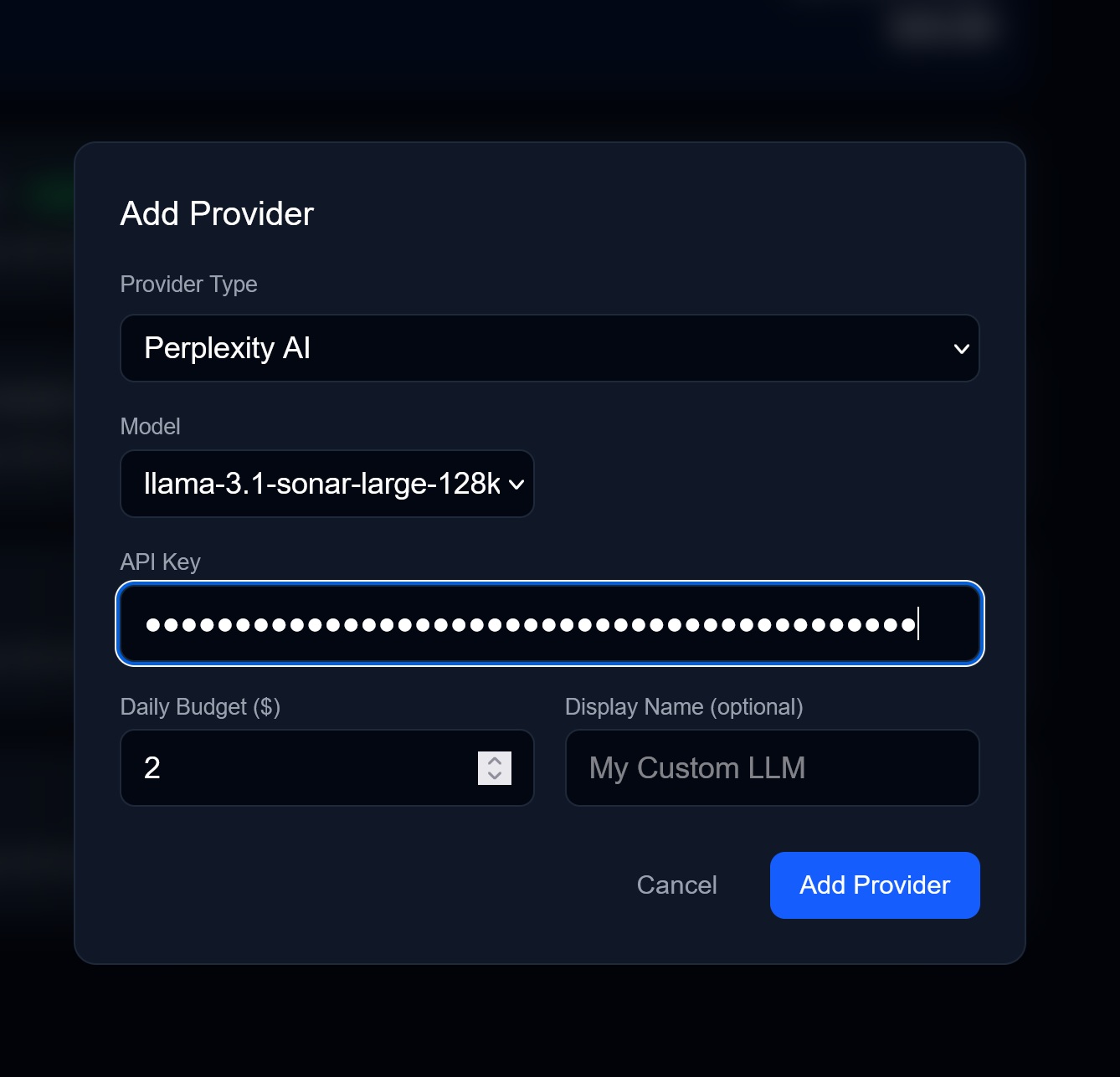
Fields Explained
| Field | Description |
|---|---|
| Provider Type | Which AI service (OpenAI, Anthropic, Perplexity, etc.) |
| Model | Specific model to use, or “auto” for smart routing |
| API Key | Your secret key from the provider |
| Daily Budget ($) | Maximum spend per day for this provider |
| Display Name | Optional nickname (e.g., “My Fast Model”) |
Getting Your API Keys
Claude (Anthropic)
- Go to console.anthropic.com
- Sign up or log in
- Navigate to API Keys
- Click Create Key
- Copy the key (it won’t show again!)
GPT-4 (OpenAI)
- Go to platform.openai.com
- Log in
- Go to API Keys in settings
- Click Create new secret key
- Copy immediately
Gemini (Google)
- Go to aistudio.google.com
- Click Get API Key
- Create in a new or existing project
- Copy the key
Perplexity
- Go to perplexity.ai/settings/api
- Log in and navigate to API settings
- Generate a key
Local Models (Ollama/LM Studio)
No API key needed! Just enter the base URL:
- Ollama:
http://localhost:11434 - LM Studio:
http://localhost:1234
Tips
- Start with one provider and add more later
- Set conservative budgets initially ($1-5/day)
- Use “auto” model unless you need a specific one
- Display names help when you have multiple of the same provider
Managing Existing Keys
In the Providers tab, each provider card shows:
- Status (active/inactive toggle)
- Usage (spent today vs budget)
- Edit button to update key or budget
- Delete button to remove
→ Next: Budget Management