Using the Chat
The chat interface is where you talk to the chorus. Here’s everything you need to know.
The Layout
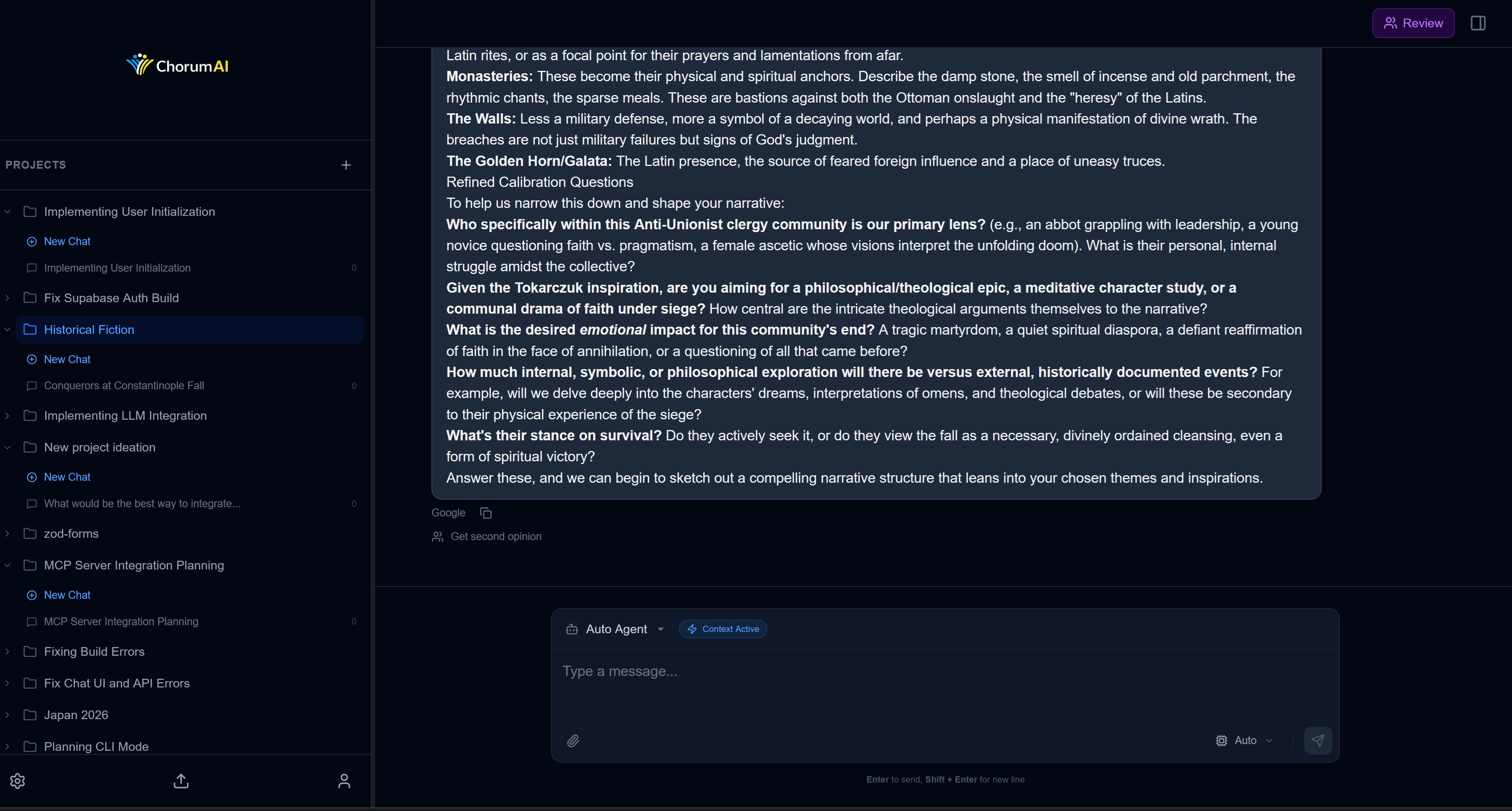
┌─────────────┬──────────────────────────────────┬──────────────┐
│   SIDEBAR   │            CHAT PANEL            │   CONTEXT    │
│             │                                  │    PANEL     │
│  Projects   │  ┌────────────────────────────┐  │   (toggle)   │
│  Convos     │  │  Messages appear here      │  │              │
│             │  │                            │  │   Memory     │
│             │  │                            │  │   injected   │
│             │  └────────────────────────────┘  │              │
│             │                                  │              │
│             │  ┌────────────────────────────┐  │              │
│             │  │  Type your message...      │  │              │
│             │  └────────────────────────────┘  │              │
└─────────────┴──────────────────────────────────┴──────────────┘
Three-Panel Design
- Sidebar (left): Projects, conversations, settings
- Chat Panel (center): Where the conversation happens
- Context Panel (right): Shows what memory is being used (toggle with button)
All panels are resizable. Drag the borders.
Sending Messages
Type your message in the input box at the bottom and hit Enter (or click Send).
Attaching Images
Click the 📎 icon or drag-and-drop images into the chat. Vision-capable models (GPT-4V, Claude 3) can analyze them.
Keyboard Shortcuts
| Action | Shortcut |
|---|---|
| Send message | Enter |
| New line | Shift + Enter |
| Toggle context | Button in header |
The Provider Pill
Look at the header of the chat panel. You’ll see something like:
╭─────────────────────────────────────╮
│ 🤖 Claude Sonnet  │  $0.002  │  ⚙️ │
╰─────────────────────────────────────╯
This tells you:
- Which AI is currently responding
- Cost so far for this session
- Settings access
Changing Providers
Click the provider name to open the selector. You can:
- Let Chorum decide (Auto mode) — routes based on task type
- Force a specific provider — Claude, GPT, Gemini, or local models
Why force? Maybe you want Claude’s writing style, or GPT’s code generation, or you want to use a free local model.
Messages
Each message shows:
- Who sent it (you or the AI)
- The content (with markdown rendering)
- Cost (for AI responses)
Message Actions
Hover over an AI response to see:
- 📋 Copy — Copy to clipboard
- 🔄 Regenerate — Try again with fresh output
- 🤝 Get Second Opinion — Trigger peer review
Cost Tracking
Bottom-right of Each Message shows the cost:
$0.0012 (43 in / 127 out)This means:
- $0.0012 spent on this response
- 43 tokens sent to the AI
- 127 tokens received back
Session Total
The header shows your running total for this session. Resets when you close the browser.
Don’t Want to See Costs?
Some people find it distracting. You can hide it in Settings → Preferences (coming soon).
The Context Panel
Click the toggle button in the header to show/hide the context panel.
This shows you what memory was injected into the AI’s context:
- Patterns from this project
- Relevant decisions
- Invariants being enforced
It’s useful for debugging why the AI knows (or doesn’t know) something.
Conversations
Each chat session is a conversation. You can:
- Start a new one: Click “New Chat” in sidebar
- Continue an old one: Click any conversation in the sidebar
- Name them: Click the title to edit
Conversations belong to projects. Switch projects to see different conversation lists.
Tips
Use Projects for Context Switch
Don’t mix topics in one project. Create separate projects for:
- Work stuff
- Learning projects
- Side projects
- Personal AI experiments
Each project has its own memory, so the AI won’t mix up contexts.
Let Auto Mode Work
Unless you have a specific reason, let Chorum pick the provider. The router considers:
- What you’re asking
- Cost per token
- Provider capabilities
- Your budget limits
Use Agents for Specialized Tasks
Instead of just chatting, pick a specific agent for structured tasks:
- Need analysis? Use Analyst
- Need code reviewed? Use Code Reviewer
- Need to learn something? Use Tutor
→ Next: Understanding Providers