Account Setup
Your Chorum account, explained.
Signing In
Chorum supports two ways to sign in:
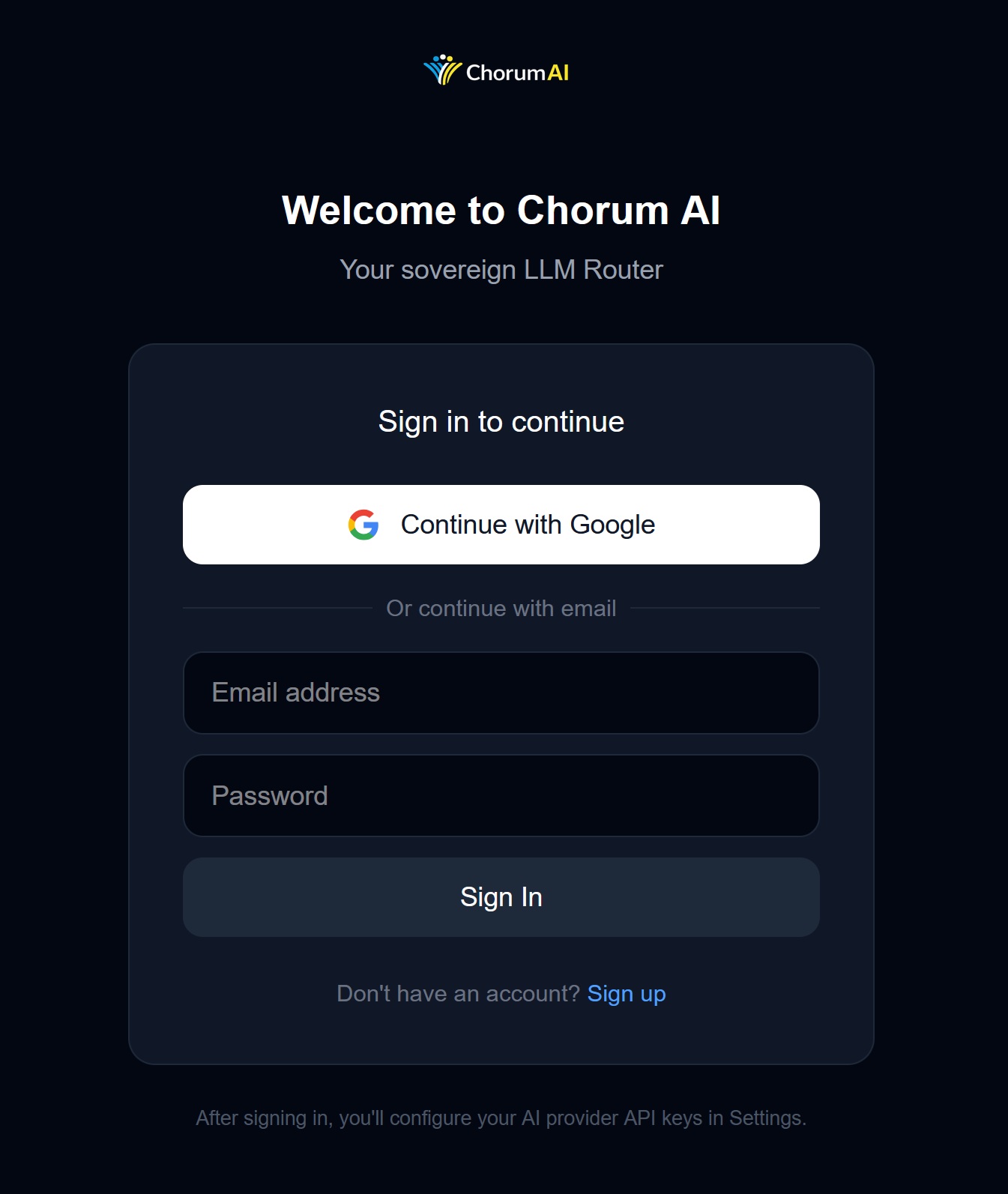
Google Sign-In
Click Continue with Google. Your account is created automatically with your Google profile info.
Email/Password
- Enter your email address
- Create a password (or enter existing)
- Click Sign In
First-time users get a quick onboarding flow to set up their first project and API key.
Profile Settings
Access your profile in Settings → Profile.
Editable Fields
| Field | Purpose |
|---|---|
| Name | How agents address you |
| Login identifier (can’t be changed) | |
| Bio | Optional context agents can use |
Why Bio Matters
Your bio can include context like:
- What kind of work you do
- Preferred communication style
- Languages you work in
Agents can read this when generating responses, making them more relevant.
Sessions
Your login session persists across browser restarts. To log out:
- Click Settings (gear icon)
- Scroll to bottom of sidebar
- Click Log Out
You’ll be returned to the login page. Your projects and memory remain safe.
Data Storage
What We Store
| Data | Where | Encrypted |
|---|---|---|
| Profile info | Supabase | Yes |
| API keys | Supabase | Yes (AES-256) |
| Conversations | Supabase | Yes |
| Project memory | Supabase | Yes |
| Patterns/learnings | Supabase | Yes |
What We Don’t Store
- Your actual messages to providers (those go directly to Claude/GPT/Gemini)
- Provider responses (unless you enable logging)
- PII detected in messages (anonymized before storage)
Deleting Your Account
Currently, account deletion requires contacting support at support@chorumai.com.
We’re working on a self-service option.
Troubleshooting
”Failed to load settings”
This usually means your session expired. Try:
- Hard refresh (
Ctrl/Cmd + Shift + R) - Log out and log back in
Google sign-in not working
Make sure you’re allowing pop-ups from the Chorum domain.
Forgot password
Currently no self-service password reset. Contact support@chorumai.com.
→ Next: Using the Chat