Memory Management
Chorum’s memory dashboard lets you view, edit, and organize all the patterns, decisions, and invariants your AI has learned.
Why This Matters
Automatic learning is great, but you need control. Maybe an extracted pattern is wrong. Maybe a decision has changed. Maybe you want to add something the AI missed. The memory dashboard gives you that control.
Accessing the Dashboard
- Open Settings from the sidebar
- Go to Memory & Learning
- Select Learned Knowledge
You’ll see the full memory dashboard for your current project.
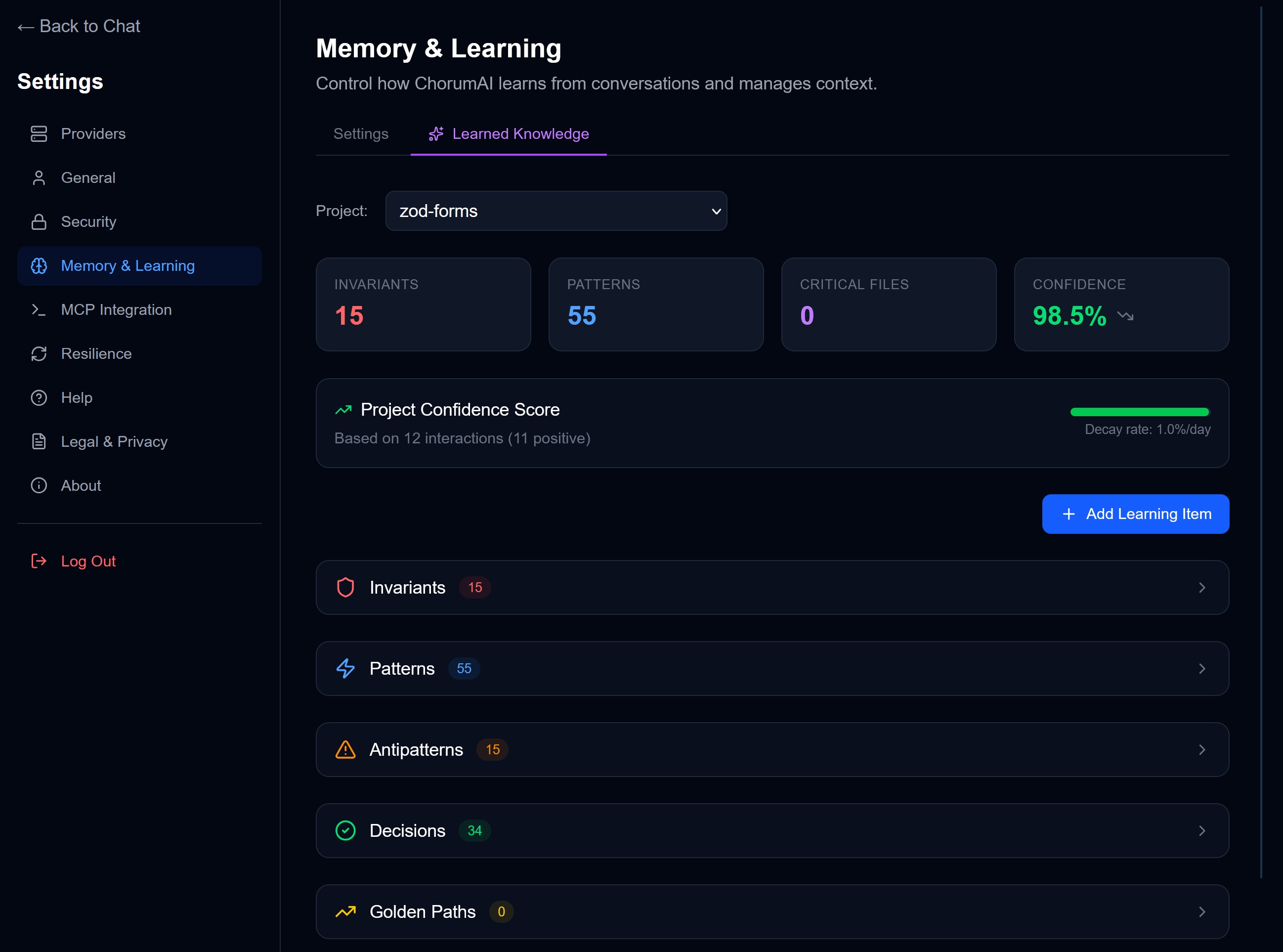
Dashboard Layout
Project Selector
Switch between projects using the dropdown at the top. Each project has its own isolated memory.
Summary Cards
Quick stats for your current project:
| Card | What It Shows |
|---|---|
| Invariants | Count of active rules |
| Patterns | Count of coding patterns |
| Critical Files | Key files identified |
| Confidence | Current confidence score |
Conductor Health Card
At the top of the knowledge tab, the Conductor Health card shows aggregate memory state: item counts by type, pinned/muted/promoted counts, your most-used items, and items approaching decay threshold.
See Conductor Health for details.
Learning Lists
Expandable sections for each learning type:
- Invariants — Rules that must not be broken
- Patterns — Coding conventions and approaches
- Decisions — Technical choices with rationale
- Golden Paths — Step-by-step procedures and recipes
- Antipatterns — Things to avoid
Each item shows edit, delete, pin, and mute actions.
Viewing Learnings
Click on any section header to expand it and see all learnings of that type.
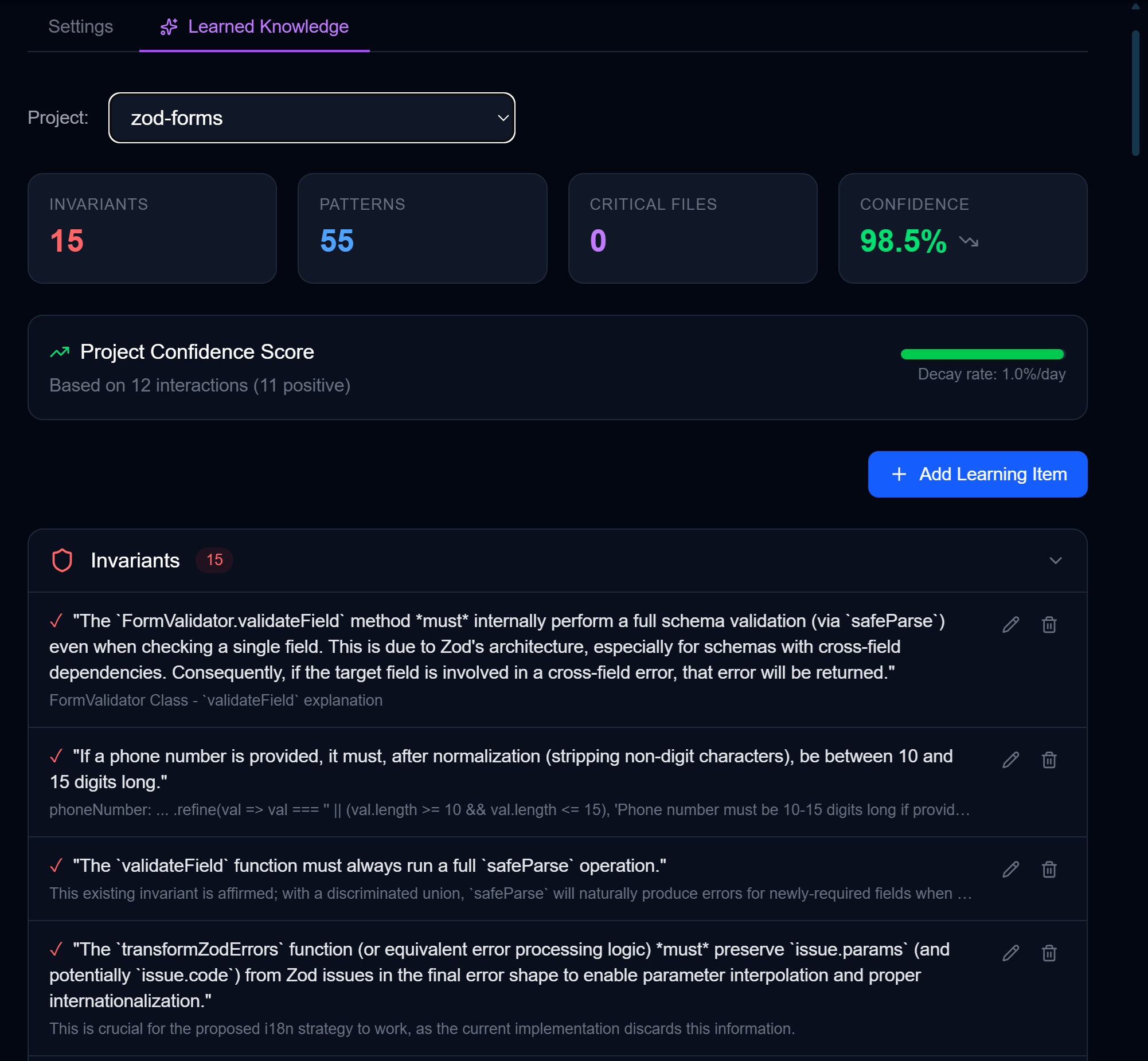
Each learning shows:
- Content — The actual learning text
- Context — Why this was learned (if provided)
- Source — Where it came from (analyzer, claude-code, manual, etc.)
- Date — When it was added
- Status badges — Pinned (blue), Muted (dimmed), Promoted (star)
- Actions — Pin, Mute, Edit, and Delete buttons
Adding a Learning
Manual Addition
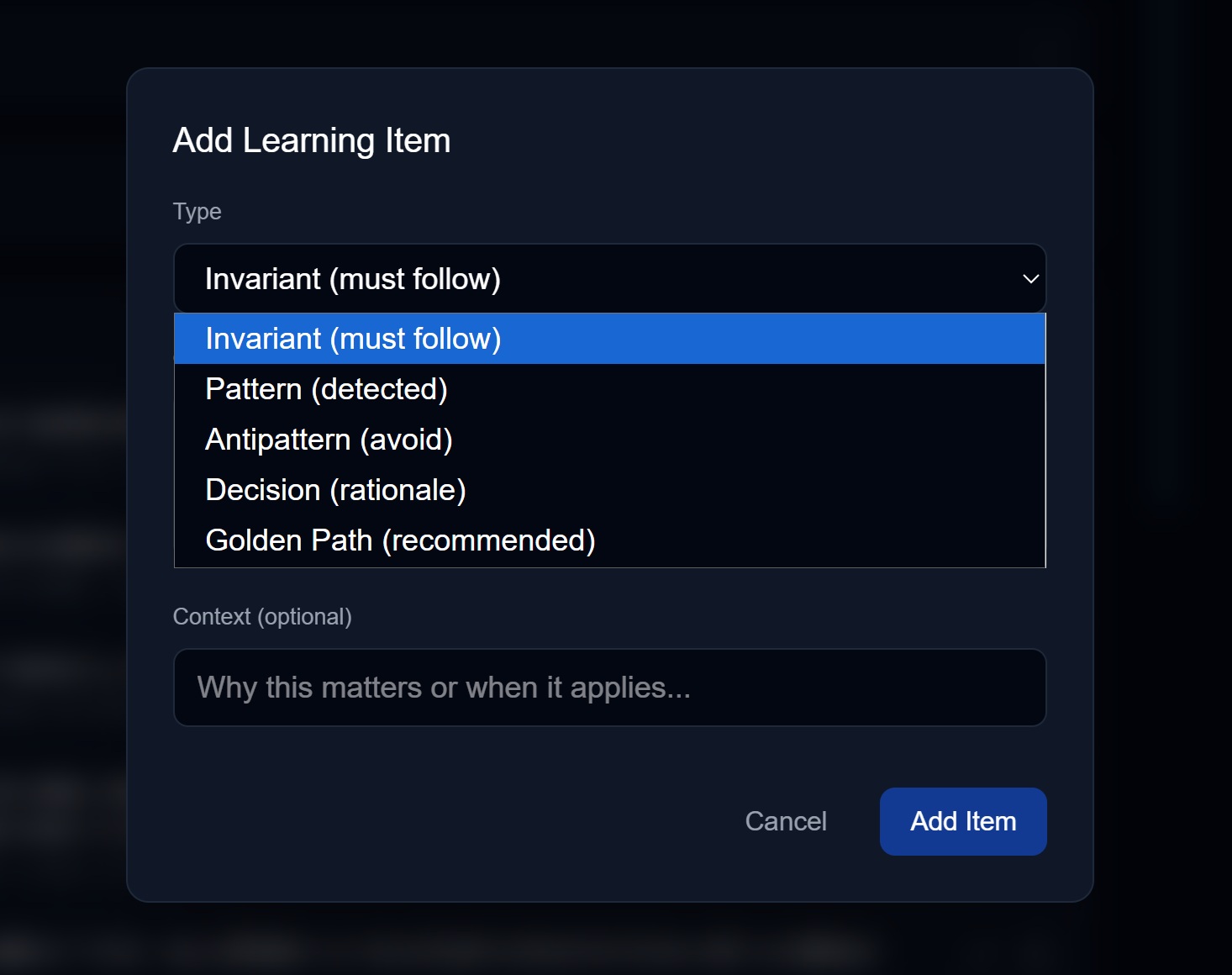
- Click + Add Learning Item
- A modal appears with:
- Type selector — Choose Pattern, Decision, Invariant, or Antipattern
- Content — The learning itself
- Context — Optional: why this matters
- Click Save
Tips for Good Learnings
| Do | Don’t |
|---|---|
| Be specific to your project | Add generic advice |
| Include the “why” | Just state facts |
| Keep it actionable | Be vague |
| One concept per learning | Pack multiple ideas |
Good examples:
✓ "Use early returns to reduce nesting—maintain 2-level max indent"
✓ "Chose PostgreSQL over SQLite for multi-user support and better indexing"
✓ "Never log user emails or PII to console—use redacted placeholders"
Bad examples:
✗ "Write good code" (too vague)
✗ "TypeScript is better than JavaScript" (not actionable)
✗ "Use functions" (too generic)
Editing Learnings
- Find the learning you want to edit
- Click the Edit (pencil) icon
- Modify the content or type
- Click Save
Common reasons to edit:
- Fix typos or unclear wording
- Update after circumstances change
- Add missing context
- Change learning type (e.g., pattern → invariant)
Pinning & Muting Learnings
Beyond editing and deleting, you can pin and mute individual learnings to steer what the Conductor injects.
Pinning (“Always Remember This”)
Pinned items are always injected into context regardless of their relevance score. Use this for knowledge that’s critical to every conversation in your project.
- Find the learning you want to pin
- Click the Pin icon (or “Always remember this” in casual mode)
- The item gets a blue accent and pin badge
When to pin:
- Project-defining rules (“All API routes require auth”)
- Foundational decisions you never want the AI to forget
- Safety-critical invariants
Note: Pinned items consume token budget. Pinning too many items may crowd out dynamically scored items.
Muting (“I Know This Already”)
Muted items are never injected but remain stored in your memory. They still participate in co-occurrence tracking and can be unmuted at any time.
- Find the learning you want to mute
- Click the Mute icon (or “I know this already” in casual mode)
- The item appears dimmed with reduced opacity
When to mute:
- Lessons you’ve internalized and no longer need reminders about
- Temporarily irrelevant items (e.g., patterns for a feature branch you’re not working on)
- Items that keep appearing but aren’t useful for your current work
Muting vs. Deleting: Muting is reversible — unmute anytime to restore injection. Deleting is permanent. When in doubt, mute.
Giving Feedback
After each response, the Conductor Trace shows what was injected. You can give thumbs up or thumbs down on individual items:
- Thumbs up — Strengthens the item’s co-occurrence signals, improving future retrieval
- Thumbs down — Weakens co-occurrence signals for this item in this context
Over time, feedback trains the Conductor to surface better knowledge combinations.
Deleting Learnings
- Find the learning to delete
- Click the Delete (trash) icon
- Confirm the deletion
When to delete:
- Learning is outdated (you’ve changed approach)
- Learning was extracted incorrectly
- Learning is duplicate of another
- Project direction has changed
Note: Deleted learnings can’t be recovered. If you’re unsure, consider muting instead.
Reviewing Pending Learnings
When the analyzer or an MCP agent proposes a learning, it goes to the Pending Learnings queue.
The Review Flow
- Go to Memory & Learning → Pending Learnings
- You’ll see all proposals waiting for review
- For each proposal:
- Source — Who proposed it (analyzer, claude-code, cursor, etc.)
- Type — What kind of learning
- Content — The proposed text
- Context — Why it was proposed
Actions
| Action | What It Does |
|---|---|
| Approve ✓ | Add to memory as-is |
| Edit | Modify before approving |
| Deny ✗ | Reject the proposal |
Best Practices
- Review regularly (daily if using MCP agents actively)
- Don’t let the queue grow too large
- Edit proposals to be more specific if needed
- Deny duplicates or off-target proposals
Bulk Operations
Exporting Learnings
To export your project’s learnings:
- Go to Settings → Sovereignty → Export
- Your learnings are included in the encrypted export
Importing Learnings
When importing from a .chorum file:
- Go to Settings → Sovereignty → Import
- Learnings from the imported file merge with existing ones
- Conflicts are flagged for resolution
→ See Export/Import for details.
Memory Health Indicators
Watch for these signs your memory needs attention:
| Indicator | What It Means | Action |
|---|---|---|
| Confidence dropping | Inactive or stale data | Use project more, add fresh learnings |
| Many pending learnings | Review queue backed up | Review and approve/deny |
| Conflicting patterns | Contradictory learnings | Edit or delete one |
| Items approaching decay | May be outdated | Review — pin if still valuable, or let them decay |
| Many muted items | Might be over-muting | Review muted items — unmute or delete |
| No pinned items | Missing guaranteed context | Pin your most critical rules and decisions |
FAQ
How many learnings can I have?
There’s no hard limit, but practical considerations:
- Performance — Thousands of learnings may slow scoring
- Relevance — More learnings means more noise to filter
- Quality — Better to have 50 great learnings than 500 mediocre ones
Can I reorder learnings?
Learnings aren’t ordered—they’re scored by relevance for each query. Recent, frequently-used learnings naturally score higher.
Do deleted learnings affect confidence?
Yes, slightly. Deleting learnings removes their contribution to confidence, but the effect is small unless you delete many.
Can I share learnings between projects?
Not directly, but you can:
- Export project A
- Create project B
- Import project A’s data and resolve what you want to keep
Future versions may support cross-project learning sharing.
Related Documentation
- Memory Overview — How the memory system works
- The Conductor — See, steer, and tune memory injection
- Learning Types — Understanding each type
- Confidence Scoring — How confidence works
- Export/Import — Backing up and restoring memory