Export & Import
Chorum lets you export your entire memory to a single encrypted file and import it anywhere. Your knowledge is portable.
Why This Matters
- Backup — Protect against data loss
- Migration — Move to a new machine
- Sharing — Transfer project context to a teammate (with a shared passphrase)
- Disaster recovery — Restore from backup if something goes wrong
Export Formats
Encrypted Export (Default)
The standard .chorum export is encrypted with a passphrase of your choice.
Contents:
chorum-export-2026-01-31.chorum (ZIP archive)
├── manifest.json           # Version, export date, item counts
├── vault.key               # Master key, encrypted with export passphrase
├── memory/
│   ├── index.db            # Full index (embeddings + metadata)
│   ├── patterns.enc
│   ├── decisions.enc
│   ├── invariants.enc
│   └── facts.enc
└── projects/
    └── [project-id]/
        ├── config.json
        └── memory.enc
Security: Uses the same AES-256-GCM encryption as your local storage. The export passphrase can be different from your vault passphrase.
Plaintext Export (Optional)
For human-readable backup. Use with caution.
Contents:
chorum-export-2026-01-31-PLAINTEXT.zip
├── manifest.json           # Includes warning about plaintext
├── memory/
│   ├── patterns.md         # Human-readable markdown
│   ├── decisions.md
│   ├── invariants.md
│   └── facts.md
└── projects/
    └── [project-id]/
        ├── config.json
        └── memory.md
⚠️ Warning: Plaintext exports contain all your memory in readable form. Anyone with this file can read your patterns, decisions, and context.
Exporting
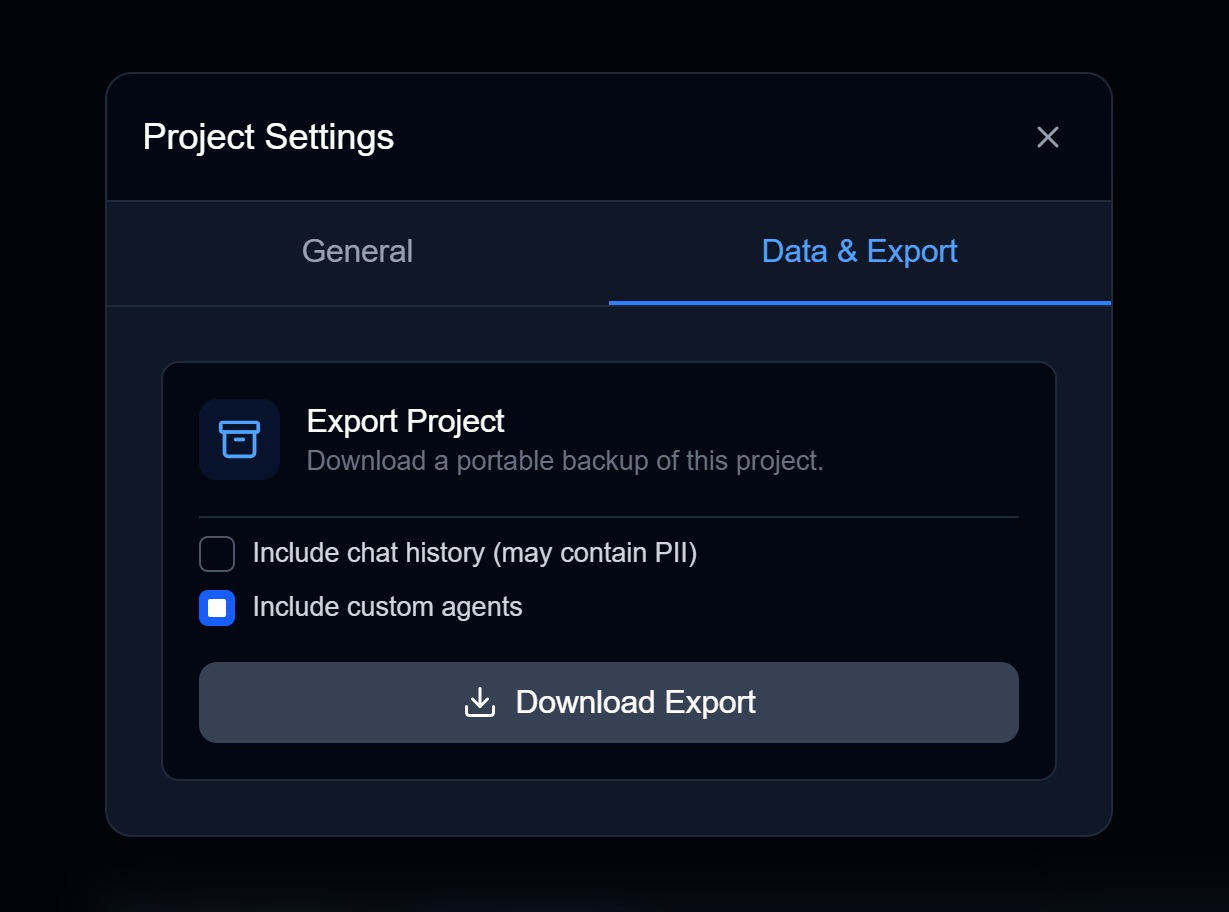
Via Web UI
- Go to Settings → Sovereignty (or Settings → Data Management)
- Click Export
- Choose format:
- Encrypted (recommended)
- Plaintext (requires confirmation)
- If encrypted, enter an export passphrase
- Click Export
- Save the
.chorumfile
Via CLI
# Encrypted export (prompts for passphrase)
chorum export
> Export passphrase: ********
✓ Exported to chorum-export-2026-01-31.chorum

# Plaintext export (requires confirmation)
chorum export --plaintext
⚠️  WARNING: Plaintext export is not encrypted. Continue? [y/N] y
✓ Exported to chorum-export-2026-01-31-PLAINTEXT.zip
Importing
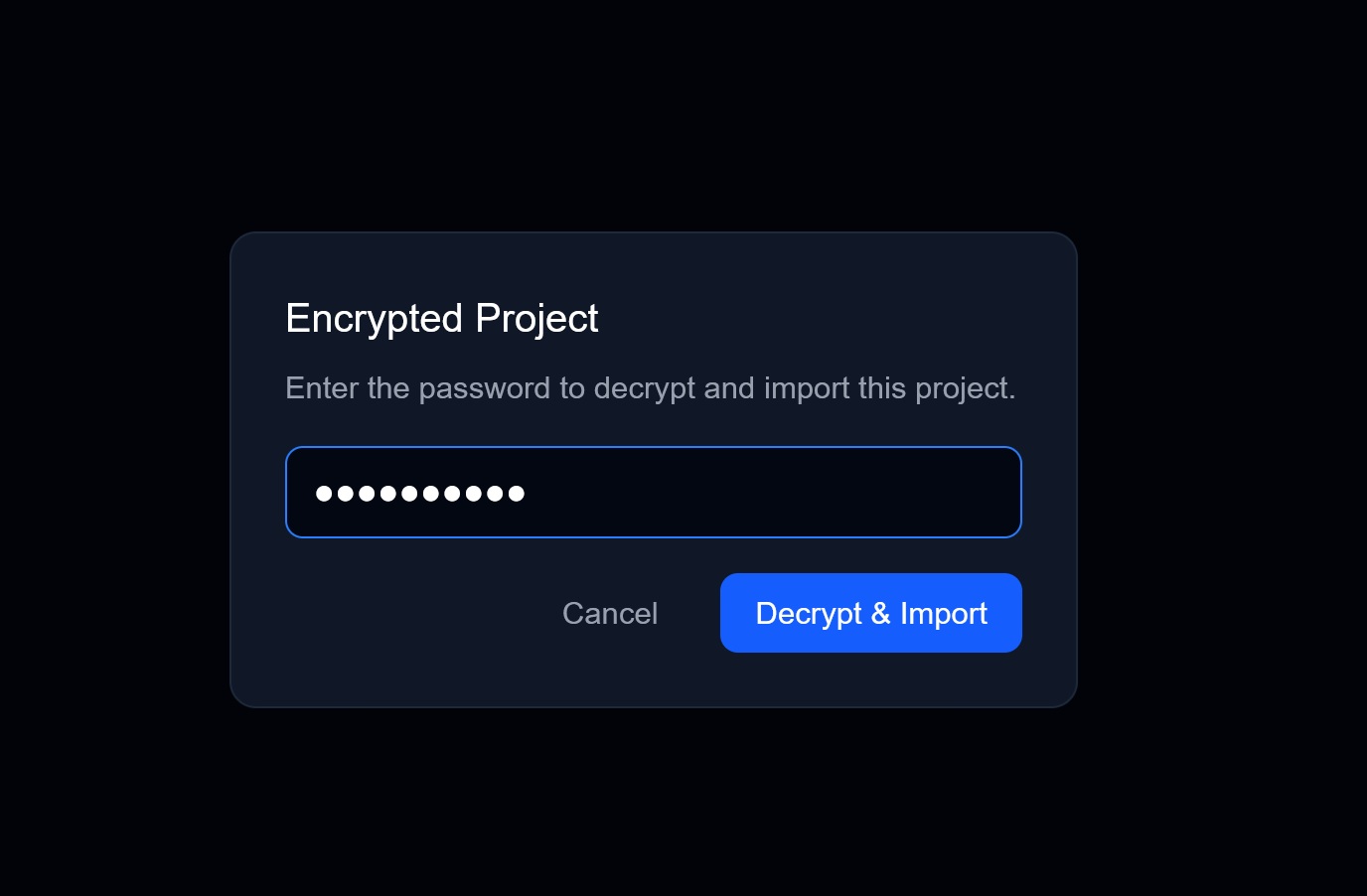
Via Web UI
- Go to Settings → Sovereignty
- Click Import
- Select your
.chorumfile - Enter the import passphrase
- Preview what will be imported
- Click Import
Via CLI
chorum import ./backup.chorum
> Import passphrase: ********
✓ Imported 47 patterns, 12 decisions, 8 invariants
  3 conflicts detected. Run `chorum conflicts` to resolve.
Import Behavior
New Installation
If you’re importing to a fresh Chorum installation:
- The imported master key becomes your vault’s master key
- You’ll be prompted to set your vault passphrase
- All data is imported directly
Existing Installation
If you already have data:
- Imported items are merged with existing items
- Items with the same ID are compared by timestamp
- Conflicts are flagged for resolution
Conflict Resolution
When importing conflicts with existing data:
Conflict detected: Pattern "typescript-validation"
  Local (Jan 20):   "Use Zod for all runtime validation"
  Import (Jan 22):  "Use Zod for runtime validation, Yup for forms"

  [K]eep local  |  [U]se imported  |  [M]erge both  |  [S]kip
Options:
| Choice | Result |
|---|---|
| Keep local | Discard the imported version |
| Use imported | Replace local with imported |
| Merge both | Keep both as separate items |
| Skip | Decide later |
Conflicts can be resolved in the UI under Settings → Pending Conflicts.
Export Passphrase
The export passphrase encrypts the master key in your export file.
Options:
- Same as vault passphrase — Convenient, same security
- Different passphrase — Better for sharing or extra security
If you’re sharing an export with a teammate, use a different passphrase and communicate it securely (not in the same channel as the file).
Best Practices
Regular Backups
| Frequency | Recommended For |
|---|---|
| Weekly | Active development |
| Monthly | Maintenance projects |
| Before major changes | Always |
Secure Storage
| Storage | Good For | Caution |
|---|---|---|
| Local encrypted drive | Personal backup | Single point of failure |
| Cloud with encryption | Offsite backup | Choose trusted provider |
| USB drive | Cold storage | Physical security |
| Password manager | Small exports | Size limits |
Passphrase Management
- Use strong, unique passphrases for exports
- Store passphrases in a password manager
- Don’t send passphrase and file through the same channel
CLI Commands Reference
# Export with interactive prompts
chorum export

# Export to specific file
chorum export --output ./backups/weekly.chorum

# Export plaintext (requires confirmation)
chorum export --plaintext

# Import with interactive prompts
chorum import ./backup.chorum

# Show merge conflicts
chorum conflicts

# Resolve conflicts interactively
chorum conflicts --resolve
FAQ
How large are export files?
Depends on your memory size. Typical ranges:
- Small (< 50 learnings): 50-100 KB
- Medium (50-200 learnings): 100-500 KB
- Large (200+ learnings): 500 KB - 2 MB
Can I automate exports?
Yes, via CLI:
# In a cron job or scheduled task
export CHORUM_EXPORT_PASSPHRASE="your-passphrase"
chorum export --output "/backups/chorum-$(date +%Y%m%d).chorum"
What if I forget my export passphrase?
The export cannot be decrypted without the passphrase. There’s no recovery mechanism. This is by design—it’s what makes the encryption meaningful.
Can I import from an older Chorum version?
Yes. The manifest includes version information. Chorum handles migration between versions during import.
Related Documentation
- Sovereignty Overview — Why portability matters
- Encryption — How exports are secured
- Memory Management — Managing your data