Settings Overview
Configure Chorum to work your way.
Accessing Settings
Click the gear icon in the sidebar, or go to /settings directly.
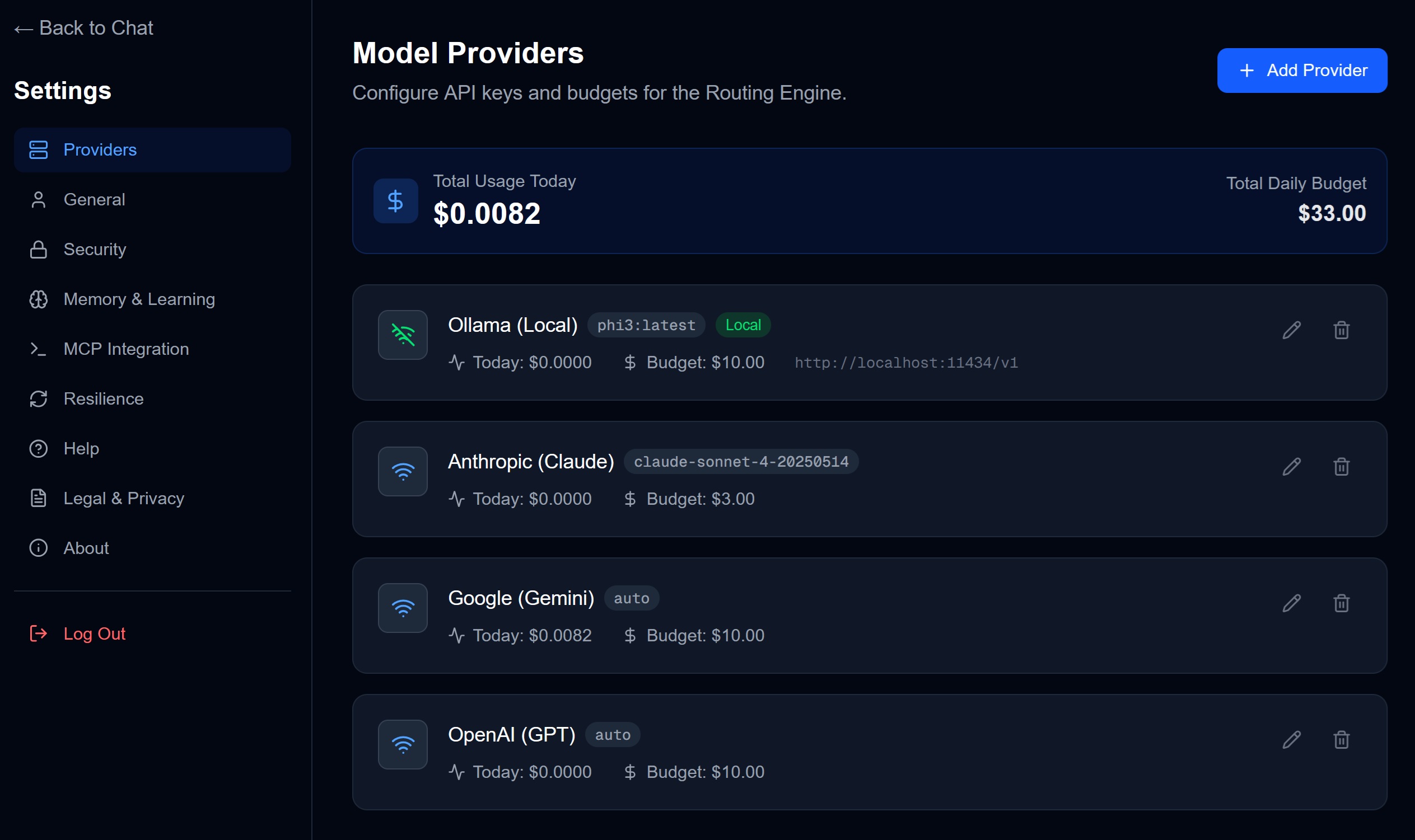
Settings Sections
The sidebar shows all settings categories:
| Section | What It Does |
|---|---|
| Providers | Add API keys, set budgets, manage models |
| General | Profile info, display preferences |
| Security | HTTPS enforcement, PII anonymization, SSL |
| Memory & Learning | Auto-learn, context injection, summarization |
| MCP Integration | Connect external AI agents (Claude Desktop, Cursor) |
| Resilience | Fallback chains, local model configuration |
| Help | Documentation links, support |
| Legal & Privacy | Terms, privacy policy |
| About | Version info, credits |
Quick Stats
The Providers page shows at a glance:
- Total Usage Today: How much you’ve spent
- Total Daily Budget: Your combined limits
- Per-Provider Status: Which are active, usage, remaining budget
Key Settings to Configure
1. Providers (Start Here)
Add at least one API key to start chatting. See Adding API Keys.
2. Budgets
Set daily limits per provider to avoid surprise bills. See Budget Management.
3. Memory & Learning
Enable auto-learning so Chorum remembers your patterns and decisions.
4. Security
Enable PII anonymization if you’re working with sensitive data.
→ Next: Adding API Keys